
This FAQ provides solutions to common issues encountered when using NETUM barcode scanners. For more technical support, please refer to the product manual or contact our official customer service.
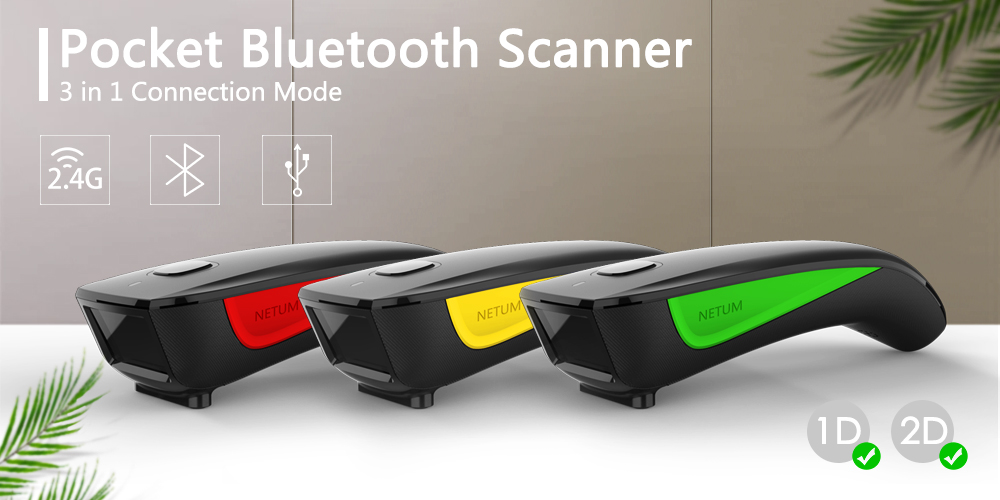
1. What should I do if I cannot connect to an Android phone via Bluetooth?
A. Check if the Bluetooth function of the mobile phone is normal. You can test this by connecting other Bluetooth devices. Meanwhile, confirm that the searched Bluetooth name matches the one labeled on the scanning device (usually starts with "NETUM-").
B. Verify whether the scanning device has entered Bluetooth pairing mode. To activate pairing mode: press and hold the power button for 3-5 seconds until the indicator light flashes alternately (usually blue and red). Ensure the indicator light is in the flashing state during pairing.
2. Why can't some barcodes be scanned, and what are the solutions?
A. First, confirm the symbology type of the barcode (e.g., QR code, Code 128, UPC-A) and check if it is within the supported symbology list of your NETUM scanner (see the product manual for details). If you are unsure about the symbology type, it is recommended to contact the device manufacturer for consultation.
B. Check if the symbology function corresponding to the barcode is enabled. By default, some uncommon symbologies (e.g., Data Matrix, PDF417) are disabled at the factory. You can enable the required symbology settings by scanning the configuration barcodes provided in the product manual.
3. What should I do if the barcode information cannot be uploaded to the computer/mobile phone after successful pairing?
A. Confirm whether the pairing is successful: When paired successfully, the indicator light of the Bluetooth scanner will stay solid blue (instead of flashing). If the light is still flashing, the pairing has not been completed successfully.
B. Check if the inventory mode is enabled. In inventory mode, the scanner stores barcode data locally instead of uploading it automatically. To upload the stored data, you need to manually scan the "Upload Data" configuration barcode (provided in the manual). Alternatively, switch to real-time upload mode by scanning the "Real-Time Mode" configuration barcode.
C. Confirm whether the module of the scanning device is in the factory default OK mode. If upload still fails, you can set the module to serial port mode by scanning the "Serial Port Mode" configuration barcode in the manual, then re-establish the connection and try uploading again.
4. What should I do if the computer/mobile phone cannot find the Bluetooth scanner?
A. Confirm that the communication mode selected by the device is Bluetooth HID mode (compatible with most computers and mobile phones). To switch to HID mode, scan the "HID Mode" configuration barcode in the manual. Meanwhile, ensure the scanner has entered pairing state (indicator light flashing).
B. Verify whether the searched Bluetooth device corresponds to the scanning device.
5. How to re-pair the Bluetooth scanner that has been connected to a mobile phone/computer?
1. Go to the Bluetooth settings interface of your mobile phone/computer and find the paired record of the NETUM scanner (usually named "NETUM-XXX"). 2. Select the record and choose "Forget Device" or "Remove Pairing". 3. Restart the scanner to enter pairing mode, then search for the scanner again on your device and complete the pairing connection.
6. What should I do if I cannot connect automatically after reinserting the Bluetooth adapter or restarting the mobile phone's Bluetooth?
A. Ensure that the computer/mobile phone is not connected to other Bluetooth devices, and close the Bluetooth search interface of other nearby devices. Interference from other Bluetooth signals may affect the automatic connection.
B. Restart the Bluetooth scanner by pressing and holding the power button for 2 seconds (until the indicator light turns off and then on again). Do not pair with other computers/mobile phones during this period. The scanner will automatically connect to the last paired device within 30 seconds.
7. What should I do if I cannot connect to the device after switching the communication mode?
After switching the communication mode (e.g., from HID to Serial Port), the original pairing record will become invalid. Please follow these steps: 1. Delete the existing paired Bluetooth device record on your computer/mobile phone. 2. Restart the scanner to enter the pairing mode corresponding to the new communication mode. 3. Re-search and pair the device to complete the connection successfully.
If you have any other questions or need to consult about 1D and 2D barcode scanners (including product parameters, compatibility, maintenance, etc.), please feel free to contact the NETUM Barcode Scanner Team