
In the digital age where efficiency is the core of business operations, barcode scanners have become indispensable tools across retail, logistics, manufacturing, and healthcare industries. These devices simplify data collection, eliminate manual errors, and accelerate workflows—turning tedious tasks into one-click operations. Whether you’re a small business owner setting up a checkout counter or a warehouse manager optimizing inventory processes, mastering how to use a barcode scanner is the first step to unlocking operational excellence. Let’s dive into a step-by-step guide, along with pro tips to maximize your scanner’s performance.
Step 1: Choose the Right Barcode Scanner for Your Scenario
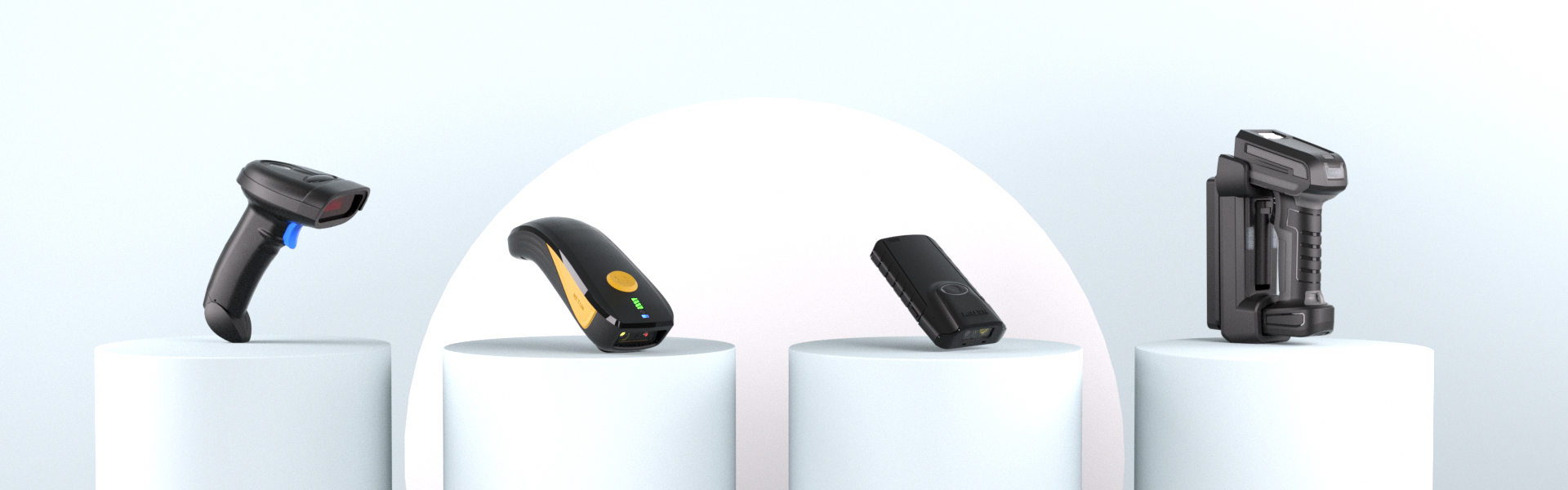
Before using a barcode scanner, selecting the appropriate type based on your needs is crucial—this ensures seamless integration and optimal efficiency. Here are the most common types and their ideal use cases:
- Wired Handheld Scanners: Equipped with USB, RS-232, or keyboard interfaces, they’re plug-and-play for fixed locations like retail cash registers. Perfect for businesses that don’t require mobility .
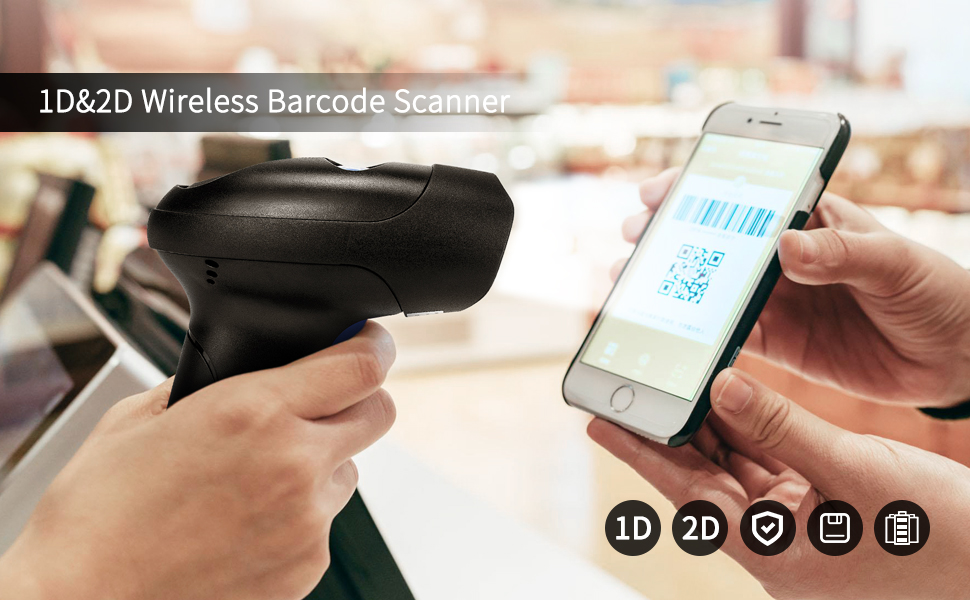
- Wireless/Bluetooth Scanners: Free from cable constraints, they’re ideal for warehouse inventory checks, delivery services, and large retail stores. Support real-time data sync and work with smartphones, tablets, or computers .
- Fixed Mount Scanners: Installed on assembly lines or self-checkout kiosks, they enable automatic, hands-free scanning for high-volume tasks like product sorting .
- Image Scanners: Compatible with both 1D and 2D barcodes, they perform well on blurred, damaged, or reflective labels—great for healthcare (medication tracking) and logistics .
Step 2: Setup & Connection—Simple as 1-2-3
Most barcode scanners require minimal setup, even for beginners. Follow these steps to get started:
Unbox & Inspect
First, unbox the scanner and verify all accessories are included: data cable, power adapter (if needed), and user manual. Check for physical damage—cracks on the shell, loose buttons, or smudges on the scanning window. For wired models, ensure the data cable clicks securely into the scanner’s port (a loose connection often causes malfunctions). Clean the window with a soft, lint-free cloth if dirty to avoid scanning errors.
Connect to Your Device
Connection methods vary by scanner type, but the process is straightforward:
- Wired Scanners: For USB models, plug the cable directly into your computer’s USB port. Most systems automatically install drivers—no extra software needed. For RS-232 interfaces, use a serial cable and install drivers from the manufacturer’s website if required .
- Wireless/Bluetooth Scanners: Turn on the scanner and enable Bluetooth (via a button combination or settings). On your computer/phone, search for the scanner’s Bluetooth name and pair it. Some models use a USB dongle for stable long-range connections .
Configure Basic Settings
Refer to the user manual to customize settings for your workflow. Key configurations include:
- Scan Mode: Opt for single-scan (press the trigger for each barcode) for retail checkout scenarios, or continuous-scan (automatic scanning) for high-volume warehouse inventory tasks.
- Barcode Compatibility: Enable only the barcode types your business uses (e.g., EAN-13 for retail products) to minimize misreads and improve scanning speed.
- Data Output Format: Set up preferences like adding a carriage return after scans, which auto-creates line breaks in spreadsheets, POS systems, or inventory management software.
- Scan Mode: Choose single-scan (press the trigger for each barcode, ideal for retail checkout) or continuous-scan (long-press the trigger for 2 seconds to lock, perfect for batch warehouse inventory). Some advanced models also offer auto-sense mode, which triggers scanning when the device is near a barcode.
- Barcode Types: Enable only the barcode types you use (e.g., EAN-13 for retail products, QR codes for logistics) to reduce misreads—some uncommon codecs are disabled by default.
- Data Output: Set up formats like adding a carriage return after scans for automatic line breaks in spreadsheets or POS systems, ensuring seamless data integration.
Step 3: Master the Scanning Process
Once setup is complete, scanning becomes intuitive—follow these steps and tips to ensure fast, accurate results every time:
1. Hold the Scanner Properly: Grip the handheld scanner firmly, keeping it 3–6 inches (8–15 cm) away from the barcode. Tilt it at a 15–30° angle to avoid glare, which can disrupt the scan beam.
2. Aim and Trigger: Press the scanner’s trigger to activate the laser or LED beam. Align the beam with the center of the barcode, ensuring the entire code is within the scanner’s field of view.
3. Confirm Successful Scanning: A beep sound and flashing green light (varies by model) signal a successful scan. The barcode data will automatically transmit to your connected device—no manual input required.
Once set up, scanning is intuitive—follow these tips for fast, accurate results:
Pro Tips to Boost Efficiency & Extend Device Life
Get the most out of your barcode scanner with these expert recommendations:
- Optimize the Environment: Avoid dim lighting or direct sunlight, as both can interfere with scanning accuracy. Use a fill light for dark areas, and ensure barcodes are clean, flat, and free of tears or smudges.
- Handle with Care: Laser scanners are shock-resistant but avoid dropping them. Store handheld scanners in a dry, dust-free area, and charge wireless models after use .
- Troubleshoot Common Issues: If scans fail, check: ① Barcode clarity ② Scanning distance/angle ③ Low battery (wireless models) ④ Driver updates. For blurred barcodes, use an image scanner instead of a laser scanner .
- Train Your Team: For businesses, train staff on proper holding techniques and device settings to reduce errors and speed up workflows. Simulate real-world scenarios (e.g., retail checkout, warehouse inventory checks) for hands-on practice.
Why Barcode Scanners Are a Game-Changer for Businesses
Beyond simplifying scanning, these devices deliver tangible value across industries, driving productivity and cost savings:
- Retail: Cut checkout time by 30% and reduce pricing errors, enhancing customer satisfaction and loyalty.
- Logistics: Track packages in real time, slashing sorting errors by 90% and accelerating delivery timelines.
- Healthcare: Ensure accurate medication dispensing and patient tracking, minimizing life-threatening mistakes and improving patient safety.
- Warehousing: Complete inventory checks in hours instead of days, improving stock management accuracy and reducing overstock or stockout issues.
Ready to elevate your operations with a barcode scanner?Choose a model tailored to your needs, follow this guide, and unlock unmatched efficiency. Whether you’re a small business or a large enterprise, the right barcode scanner turns complexity into simplicity—one scan at a time.